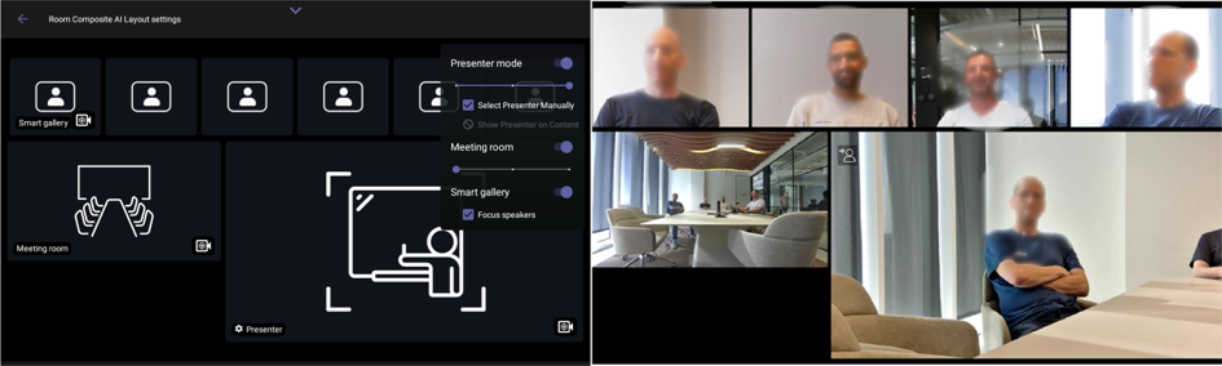
Setting up Composite AI
| ➢ | To enable and set up composite AI: |
| 1. | Do either of the following: |
| ● | On the RX-PAD, touch the camera hard key below the screen. |
| ● | Swipe down to display the main menu tray, then tap the Camera Settings option. |
| 2. | Tap the Composite AI Camera toggle button so that it is on: |
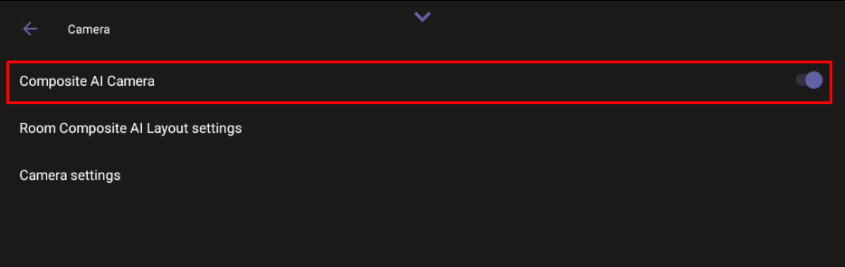
On the screen to which the RXV200 is connected, a pop-up message appears, indicating that the Composite AI camera is connected.
| 3. | Tap Room Composite AI Layout Settings to choose the layout. |
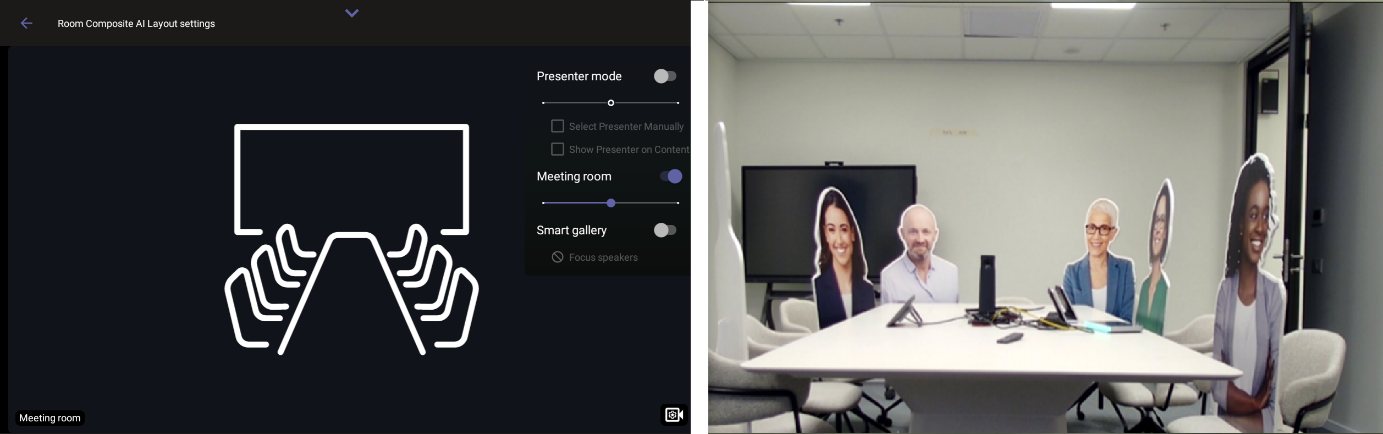
The connected camera stream opens. On RX-PAD, the layouts are displayed as shown in the following figure:
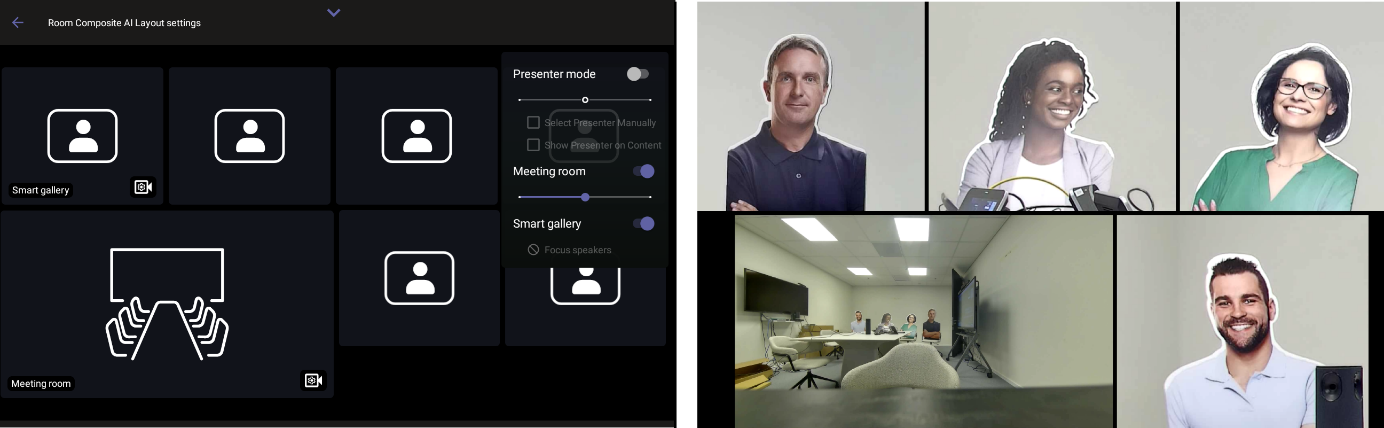
In the RXV200 screen (when RXV200 is connected to RXVCam70), the main camera is in the center of the screen and the wide-angle camera at the lowermost left.
| 4. | Disabling Meeting room closes the wide-angle camera and centers the main camera feed in the screen. |
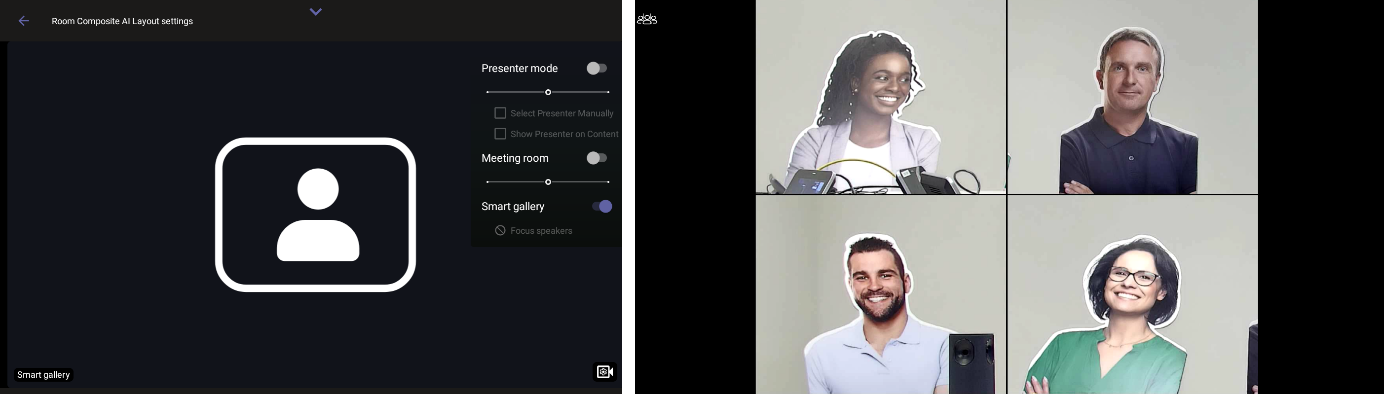
| 5. | To close the main camera and center the wide-angle camera feed in the screen, disable the Smart gallery. |
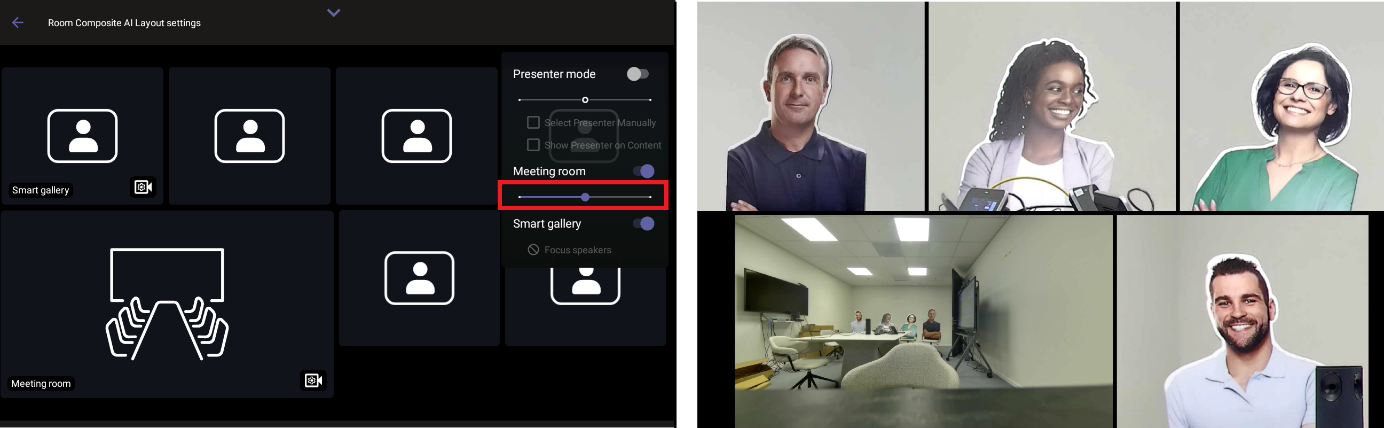
| 6. | Use the scaling bar shown in the following figure to control the ratio between the main camera size and the wide-angle camera size; move the slide bar to adjust the size of the Meeting room view accordingly. |
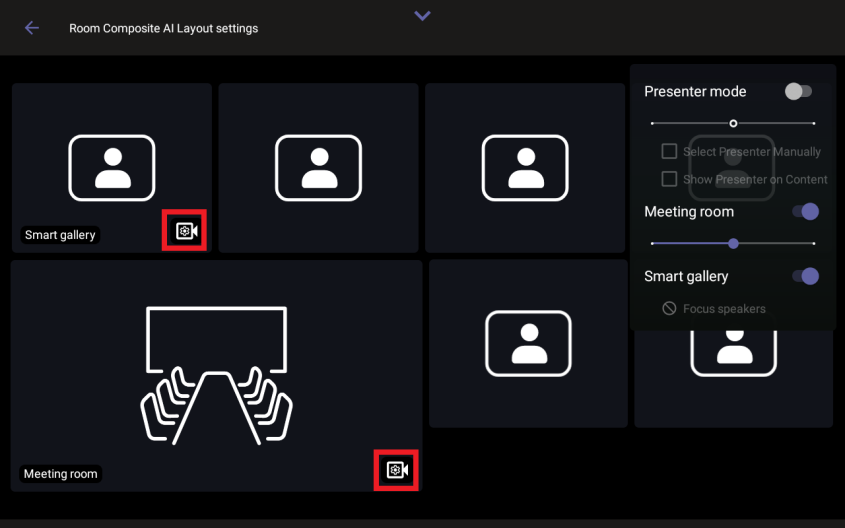
| 7. | To adjust the settings (e.g., brightness and saturation) of a specific camera, click its  icon: icon: |
When connected to the RXVCam360 and RXVCam50 cameras, the following screen displays:
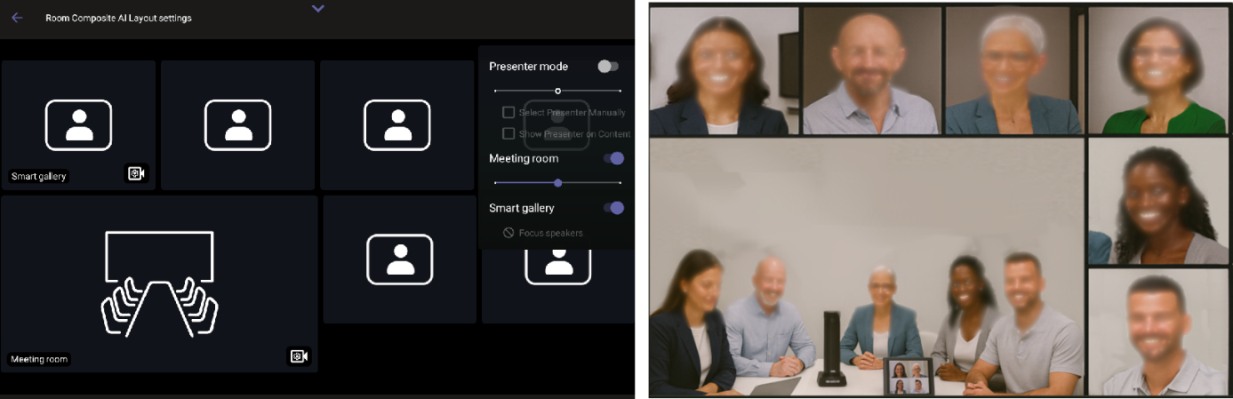
When connected to the RXVCam360 and RXVCam70 (RXVCam70 combining both wide-angle camera and PTZ camera), the following screen is displayed: